
Live product demos are supposed to build excitement — but setting one up traditionally usually means CAD files, a specialized software license, and someone on the team who knows how to use it. That’s a lot of overhead for a demo that might just need to spin, zoom, and show off a product from every angle.
A photo to 3D model workflow through Tripo AI skips most of that friction, turning a simple reference photo into an interactive 3D asset ready for a booth, a livestream, or a website — no CAD training required.
Ditching the CAD file for something faster
CAD software has its place — precision engineering, manufacturing tolerances, technical drawings. But if the goal is simply a product that customers or investors can rotate and explore on a screen, that level of complexity isn’t always necessary.
Tripo AI takes a different route: instead of building geometry point by point, it generates a 3D model directly from a reference photo, giving small teams and solo founders a way to get an interactive asset without hiring a CAD specialist or learning a new tool from scratch.
Making it look like the real thing (or close to it)
A plain gray mesh doesn’t sell a product — the material, finish, and branding do. Once the base shape is generated, Tripo AI’s 3D model texture generator can apply color, material, and surface detail across the model in one pass, so a demo piece starts to resemble the finish customers would actually see, whether that’s brushed metal, matte plastic, or a printed logo.
The Magic Brush tool makes it easy to touch up specific spots — a label, a button, a seam — without reworking the entire texture.
From reference photo to spinning demo
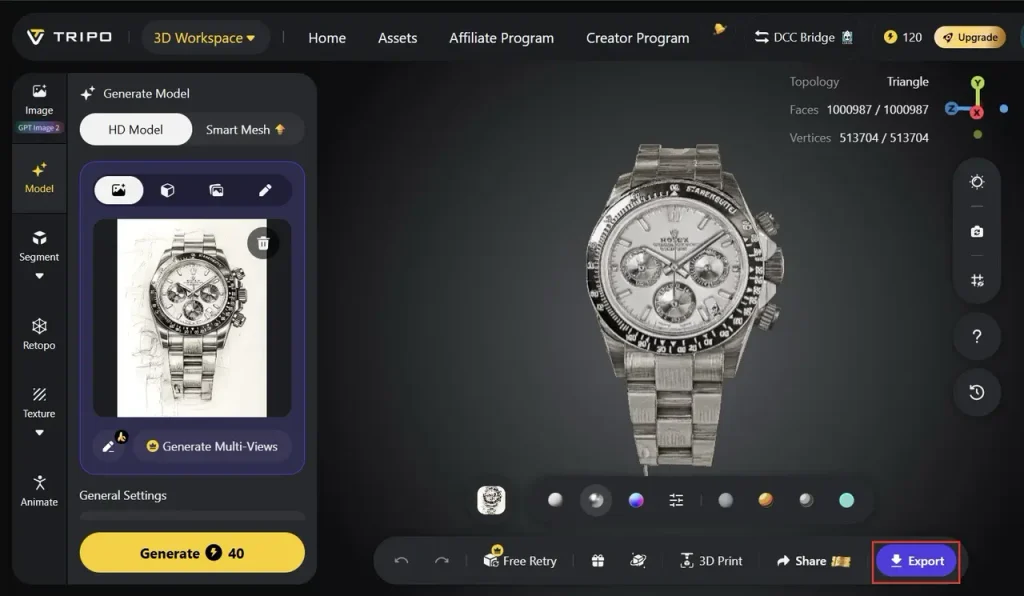
So what does the actual build process look like? Here’s the general path inside Tripo AI for turning a product reference into a live, interactive demo asset.
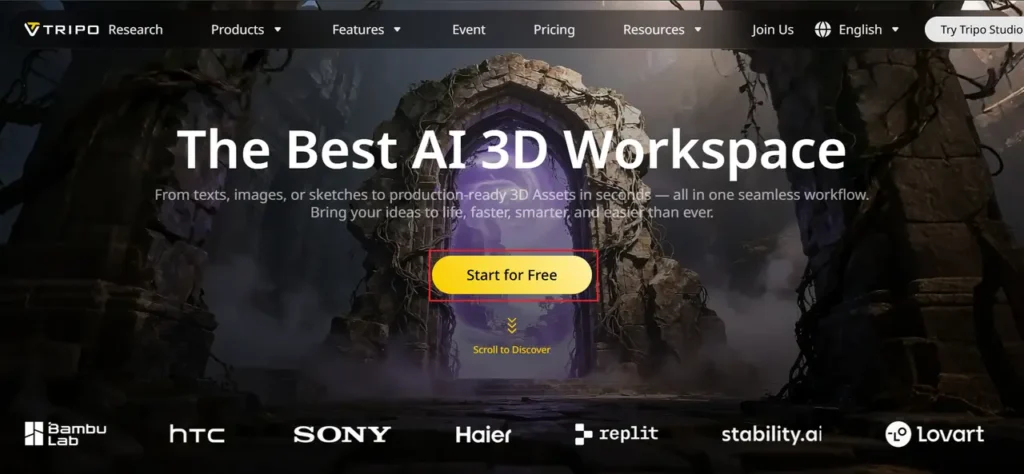
Step 1: Start with Tripo AI
Enter the Tripo AI workspace and choose your input type — Image-to-3D if you’re working from a product photo, Text-to-3D if you’re starting from a written concept, or Multi-view Images if you have shots from a few different angles.
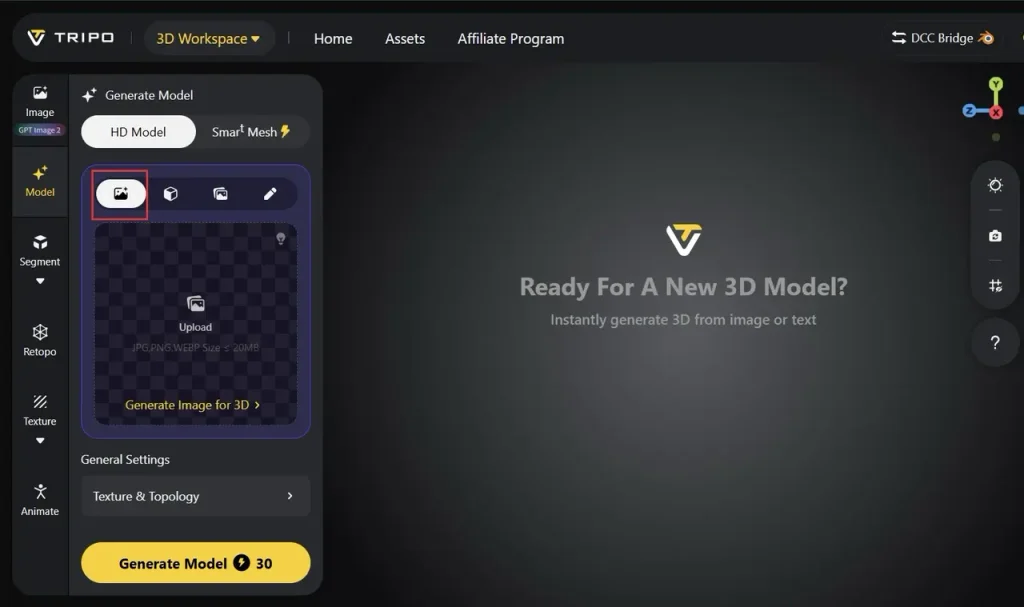
Step 2: Upload image and configure settings
Upload your reference file — JPG, PNG, and WEBP all work — and set your mesh quality and texture resolution based on where the demo will live. Options like:
- Ultra or Smart Mesh quality for a polished, close-up product showcase
- Standard settings for a lighter file that loads quickly on a live demo screen or web embed
- 4K PBR textures when material realism matters for the presentation
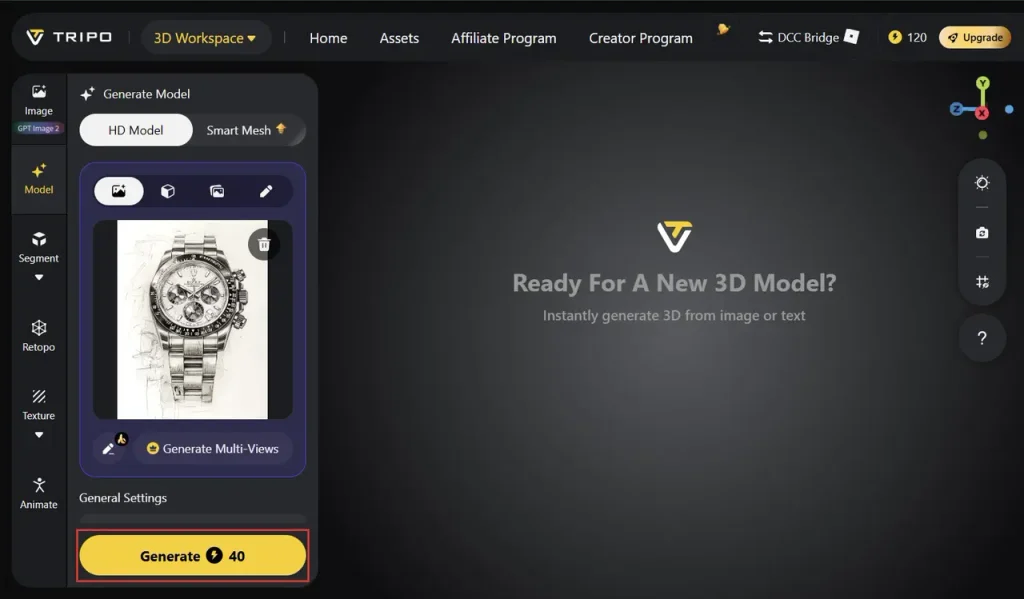
Step 3: Generate & refine
Hit generate, and the Smart Mesh models generate in seconds; HD Model quality takes a few minutes — pick based on how polished the demo needs to be.
Step 4: Export
Download the finished model in whatever format the demo setup needs. Tripo AI supports STL, OBJ, FBX, GLB, 3MF and USD, so the asset can drop into Blender for a rendered demo video, a game engine or web viewer for an interactive booth display, or a slicer if a physical version needs printing too.
When the product only exists as an idea
Sometimes, the “product” being demoed hasn’t been manufactured yet — it might just be a concept, a rough drawing, or a description on a pitch deck. This is where text to 3D becomes genuinely useful inside Tripo AI: describing the product in words can generate an early 3D form to demo with, even before a physical unit exists.
It’s a practical way to test how a concept looks and reads in 3D before committing budget to a physical prototype or a full CAD build.
Where this actually gets used
A 3D demo asset built this way isn’t limited to one setting — it can travel across:
- A live event booth, spinning on a screen while the team talks through it
- A product page, letting customers rotate and zoom before buying
- An investor pitch, showing a concept that doesn’t have a manufactured sample yet
- A livestream launch, giving remote viewers a closer look than a flat photo could
For teams without a dedicated 3D or CAD specialist, that range of use is what makes the workflow worth setting up once and reusing often.
Final thoughts
A great live demo doesn’t need to start with expensive software or a manufactured sample — it just needs a clear reference and the right tool to bring it into 3D.
Tripo AI gives teams of any size a way to build that demo quickly, without the CAD learning curve standing in the way.
Try Tripo AI and turn your next product concept into a live, interactive showcase!
Also Read
- https://grammarexplore.com/permanent-hair-reduction-without-laser-exploring-all-your-long-term-hair-management-options/
https://grammarexplore.com/beyond-the-filter-how-to-choose-an-air-cleaner-that-actually-fits-your-space/
https://grammarexplore.com/beyond-the-filter-how-to-choose-an-air-cleaner-that-actually-fits-your-space/